 Poke Fun Play
Printing Pokémon outlines on Letter or A4
Print a free Pokémon outline or your colored picture with the site’s print control, then check paper size, scaling and margins in the preview.
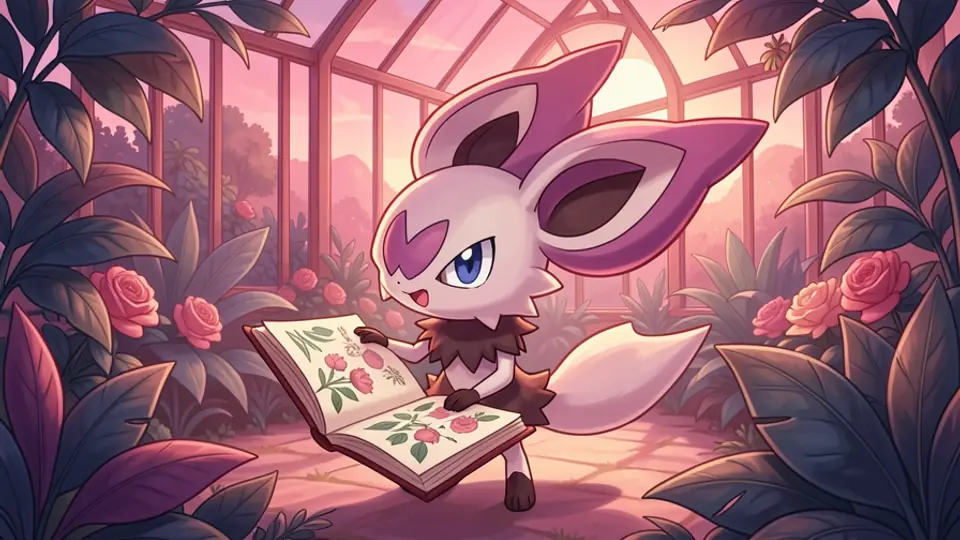
Use the picture’s Print control
Open a Pokémon coloring page and use Print for the blank outline, or open the editor and print your colored version. The site prepares a simple sheet containing the Pokémon name, the picture and a short Poke Fun Play fan-art attribution. This avoids printing the navigation and the rest of the activity page along with the artwork.
For colored output, the editor combines your painting and the original outline on a white background. Download provides a PNG image; Print opens the browser’s print dialog. The site does not create a downloadable PDF through that button. Some browsers offer Save as PDF as a print destination, which can be useful if you want to review a document before using a printer.
Match the paper loaded in the printer
Choose Letter or A4 in the print dialog to match the sheets you actually loaded. The site leaves paper size to the browser and printer settings. Portrait is a useful first preview for a single Pokémon picture, but check the image rather than assuming every outline needs the same orientation. A wide pose may benefit from a different arrangement.
The prepared sheet uses a 12 mm page margin and keeps the image inside the available width. Those layout choices do not override a printer’s physical limits. Check that the Pokémon’s ears, tail or wings are fully visible and that the title and attribution fit on the intended page. If a Noibat outline loses a wing tip, change the print settings before sending the job.
Use scaling to prevent clipped edges
HP’s browser-printing guidance explains that settings differ between browsers. Edge, for example, offers Fit to Printable Area, Actual size and a custom percentage. A fit option is a sensible starting point when the preview shows cropping. If a smaller image is easier to color, reduce its scale deliberately and look at the preview again.
When printing a PDF saved earlier, Adobe Acrobat’s Fit option can enlarge or reduce pages to the selected paper size. Shrink oversized pages reduces pages that are too large while leaving smaller ones at their existing size. These settings apply to that PDF workflow; they do not turn the coloring site’s PNG download into a PDF or guarantee that every printer has identical controls.
Check one page before making several
Preview the page count, paper size, orientation and scale together. Disable the browser’s extra headers and footers if they add unwanted dates or addresses, while retaining the attribution that belongs to the prepared picture. Print one test sheet and inspect the outline before making a batch for a group activity. This also lets you decide whether you prefer a larger drawing or more empty space around it.
Keep a downloaded copy of a colored picture if you want to print it again later. Your browser draft remains device-specific and can disappear when site data is cleared. For a coloring session with several people, provide a few different Pokémon and let each person choose a page; the same paper settings can then serve as a starting point for the next preview.
By the Poke Fun Play editorial team. Facts checked October 5, 2026; analysis and collecting suggestions are our own.
Sources & further reading
- Poke Fun Play: printable Pokémon coloring pages · Checked 2026-10-05
- HP: Print from a web browser with an HP printer · Checked 2026-10-05
- Adobe: Scale or resize printed pages · Checked 2026-10-05
Explore the Pokémon
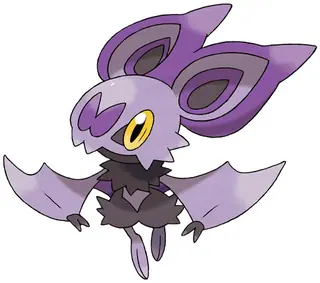 Noibat
 Squirtle
Keep exploring
Related articles
 Site guides
Choosing a Pokémon poster for your space
Compare generation, artwork style and listed sizes in the verified Etsy catalogue before choosing a digital Pokémon poster for a wall or display.
Read article → Site guides
Pokémon coloring patterns and palette ideas
Use the coloring studio’s ten pattern choices and six palettes to plan a readable Pokémon picture, experiment with texture and save your work.
Read article → Site guides
Make a game night with local two-player Pokémon games
Plan a shared-device game night with Pokémon Tic-Tac-Toe, Pokéball Connect and Poké Hockey, with clear turn-taking and a simple homemade scorecard.
Read article →Related retailers
Coloring books on Amazon · Pokémon cards on TCGplayer
Paid links. As an Amazon Associate I earn from qualifying purchases. We may earn a commission from purchases through our TCGplayer links.